Showing posts with label desktop. Show all posts

Thursday, 2 March 2017

Porsche Design introduces the Book One – A plush 2 in 1 Windows laptop


Porsche Design introduces the Book One – A plush 2 in 1 Windows laptop


Porsche design seems to be taking diversification a tab bit too seriously. After making its own shoes, lighters, watches and a Phone, it’s now headed for an altogether new category with the launch of its computing division and the reveal of the exquisite Porsche Design Book One. The novel tech-device looks like an upgrade over Microsoft’s Surface book and uses a hardware which is likely designed by Quanta, the same company that helped build Amazon’s fire tablets.


Engineered and built in Germany from scratch, the Porsche Design One comes with a milled anodized aluminum body, hinges inspired by a car transmission and a detachable tablet body. Apparently the Book one also happens to be the first laptop that is detachable and one that comes with a full 360 degree rotating design. Apart from the two obviously cool features above, the Book One also makes improvisations to the standard Surface Book by adding two USB-C ports (one of which has support for Thunderbolt 3), a faster 7th-gen Intel Core i7 CPU and a more accessible location for the laptop’s headphone jack.

However, the Book One also retains its predecessors best and provides users with the very same 13.3-inch 3200 x 1800 touchscreen with support for 2048 levels of pressure sensitivity, 16GB of RAM, 512 GB of SSD storage and a glass precision touchpad. For those who are impressed much, hold your excitement as the Book One will soon sell in the United States for an estimated $2495 in April! A bit overpriced, but for all its novel features, it is certainly worth it!
[Via:Laptopmag]

Thursday, 23 February 2017

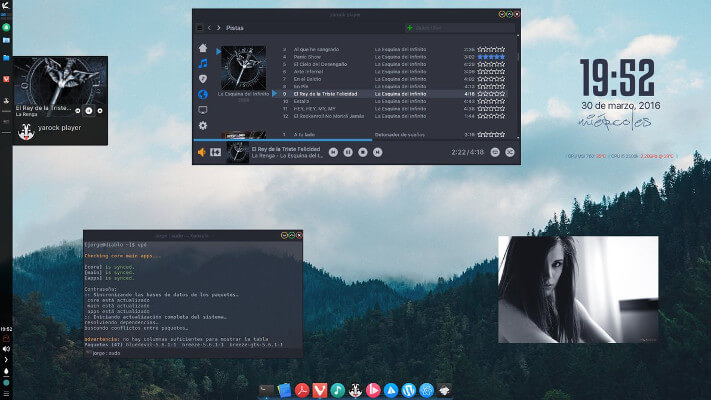
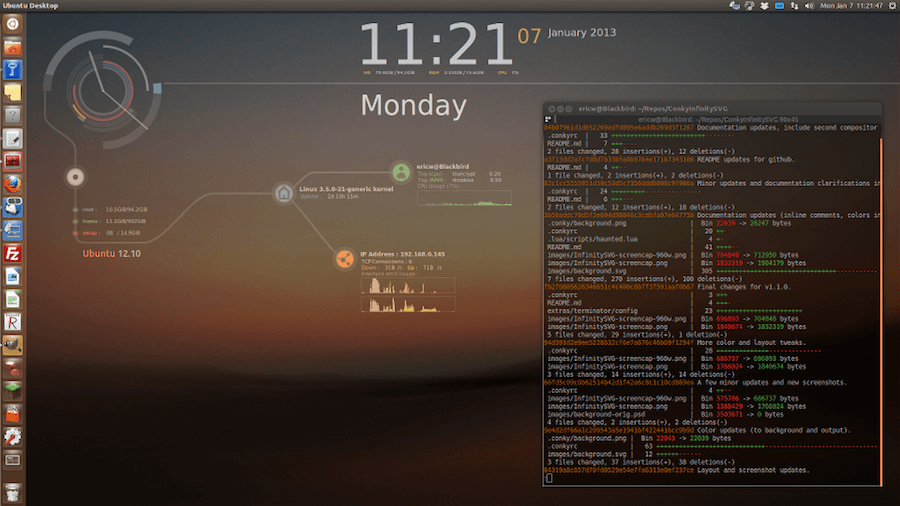
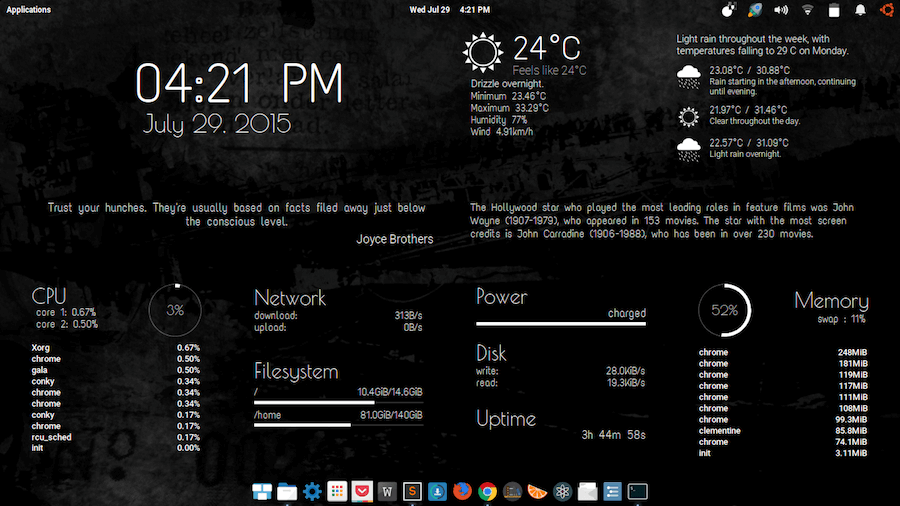
How to Decorate Your Ubuntu Desktop Using “Conky” Tool


How to Decorate Your Ubuntu Desktop Using “Conky” Tool


Conky for Linux
Iformation on your desktop. It has access to all your computer processes including CPU usage, battery status, disk space, temperature, calendars, email notifications, networks, upload & download speeds, system messages, and weather.
Combining its system monitoring feature with a theming option, you can display pretty much anything in pretty much any way you can mathematically think of thanks to its ability to hold hundreds of “objects” as widgets on your screen using graph widgets, text, and progress bars with different colors and fonts.
Conky is a light-weight system monitor for X, which displays a variety of information on your desktop. ... That is when a Conky config tool such as Conky Manager comes in handy. ConkyManager is a GUI frontend for managing Conky configuration files.

Features in Conky

Apart from being able to display data as text, graphs and progress bars in varying colors and fonts, Conky has:
  • Access to more OS statistics than you may ever need e.g. user name, system uptime, Disk, Memory and CPU usage, network statistics, e.t.c.
  • An inbuilt support for IMAP and POP3.
  • An inbuilt support for all the popular music players including Audacious,Rhythmbox and MPD.
  • The ability to be extended using either its inbuilt support for Lua or custom scripts and programs.
  • An inbuilt Imlib2 and Cairo bindings support for drawing with Lua.
  • Support for two or more instances of Conky running at once using different config files, e.g.
    $ conky -c ~/.config/conky/conky1.conf
    $ conky -c ~/.config/conky/conky2.conf 

Conky-2

Using and Configuring Conky in Linux

Conky uses a .conkyrc file located in the /etc/conky/ folder. This file contains Conky‘s display settings which can be manipulated either manually with a text editor or theConky manager. Some settings include font color, screen position, update interval and they are all in the configuration section of your configuration file.
Conky manager makes it easier to add themes, widgets, and fonts, and to manipulate configuration settings since it provides an easy-to-use GUI. Look here to see the various configuration settings you can implement in Conky.
Conky Manager

Installing Themes in Linux Using Conky

Setting up new themes in Conky is a seamless process:
  1. Download the theme.
  2. Unzip the file if necessary and move the folder to /home/your_user_name/conky-manager/themes/
  3. Start the Conky manager and then enable the theme using Conky manager.
Most themes and widgets come containing installation readme files without information about dependent fonts and/or wallpapers so it is important you go through the files to know about any extra tweaks you might want to make.

Get GUI

If you don’t much care for working from the command line, there is a GUI tool, called Conky Manager, that you can install and use. Here’s how to install this handy app:
  • Open up a terminal window
  • Add the necessary repository with the command sudo add-apt-repository ppa:teejee2008/ppa
  • Update apt with the command sudo apt-get update
  • Install Conky Manager by issuing the command sudo apt-get install conky-manager
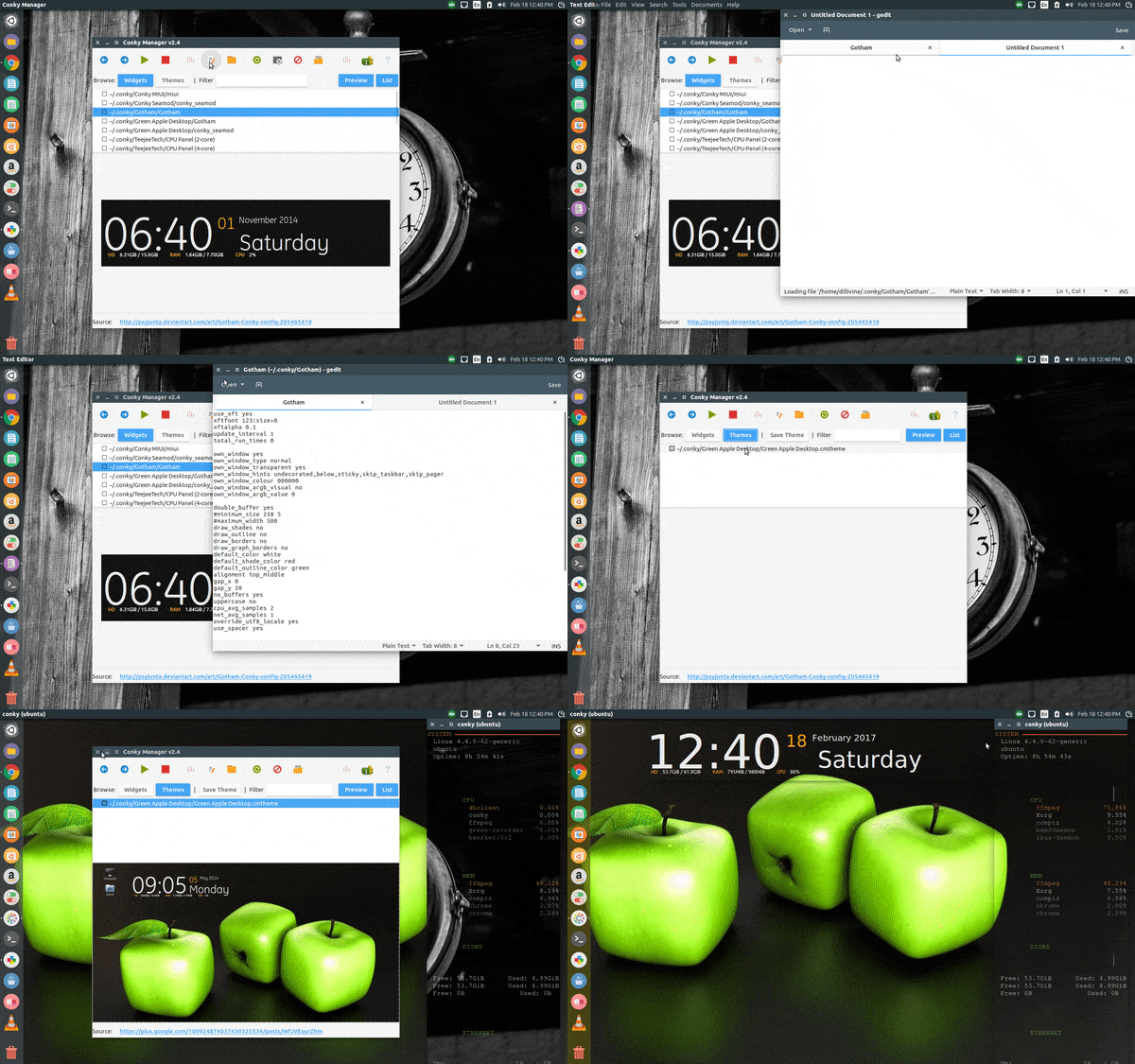
Run Conky Manager with the command conky-manager. When the app opens, you’ll see a simple-to-use window (Figure 4) that allows you to easily import theme packs, customize themes, and more. When you install the Conky Manager app, it will install several predefined themes that you can select from.
conky-4
Figure 4: The new background thanks to selecting a theme from Conky Manager.

conky_d.png

If you’ve installed a theme, prior to installing Conky Manager, you’ll need to move the~/.conkyrc file into the newly created ~/.conky folder. When you do this, Conky Manager will recognize the theme and allow you to load it and work with it.

conky_e.png

Conky-5
Figure 5: Our Qlocktwo theme loaded into Conky Manager.
Once you select a theme, from within Conky Manager, you can then click the edit button and that theme’s configuration file will open up in your default text editor, so you can configure the file to suit your needs.
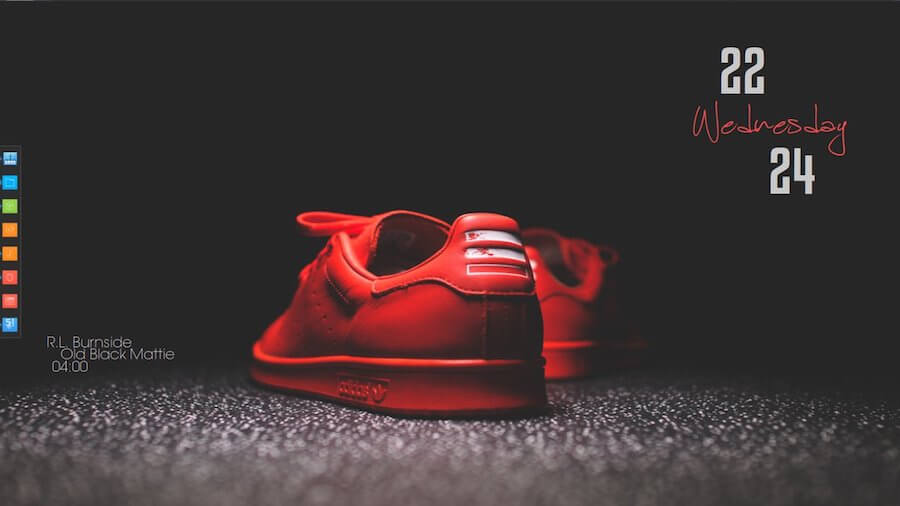
Typing Conky themes in your search engine will return tons of themes you can choose from to customize your desktop screen. You can also see a gallery of various users’ theme implementations on DeviantArt.


  Use Oranchelo Icons Flat to Beautify Your Linux Desktop
You can Share pictures of your configuration settings in the comments section you have any experience with Conky system monitor.


Friday, 27 January 2017

Building a Computer? Here's What You Need.

Customizing a Computer? Here's What You Need

Image result for build a computer

There are plenty of reasons to build a custom computer. While custom computers may initially be more expensive than prepackaged desktops or laptops, they can provide you with nearly endless possibilities, whether you're looking for a top-notch gaming machine, a system for mixing music, or the ideal choice for developing Web applications.
A custom computer is the way to go if you want both performance and flexibility. Upgrading individual parts often is less expensive than buying a new computer, which could save you money in the long run.
Following are the essential parts you'll need.

Processor and Motherboard

The component to start with is the processor, which will dictate your selection of other necessary parts, like the motherboard. UserBenchmark's exhaustive list of user-rated processors is a good resource to help you decide. AMD and Intel are the top manufacturers, but I prefer Intel.
Intel is the industry standard when it comes to processors, so you can't go wrong if that's your choice. Its Core series comes in three families: i3, i5 and i7. The i3 series is good for average computing needs, while the i5 offers a little more horsepower. The i7 series offers you the best performance. For the price, a Core i7-6700k really can't be beat.
After you choose your processor, select a motherboard to go with it. Make sure it is USB 3.1/3.0-capable for optimal speed. One factor to consider is whether you plan on overclocking, which involves running your PC at a speed higher than manufacturer recommendations.
computer motherboard
While you can benefit from short-term performance boosts, overclocking may lead to a shorter lifespan for your computer, so you'll need to consider a compatible motherboard if you plan to do it.

Storage and Memory

Next, choose the storage you want to use. HDD drives are the traditional hard drives that most computers have, and they are extremely affordable.
computer hard disc
However, SSDs are the choice for sheer performance, and their prices are dropping.
I prefer a hybrid option that includes both. A computer built with its system files on a smaller SSD will boot faster, while a larger and cheaper HDD in the 2-TB range gives plenty of storage.

Decide how much RAM you need. If you plan on running a 32-bit OS, then you only need 3 GB of memory since the OS won't support any more. Most likely, though, you will be using a 64-bit architecture where 4 GB is the minimum.
RAM is a relatively cheap upgrade for the performance you get in return. Choose 8, 12, or 16 GB for a better user experience.
You can also put in a DVD/CD drive, though it is not necessary, thanks to portable storage and cloud-based software.

Video and Audio Cards

If you intend to play video games, create digital graphics or edit video, you should invest in something more advanced than a basic video card.
For enhanced graphics, AMD, ATI or Nvidia cards will do the trick. The AMD Radeon RX 460 is a reasonably affordable option that can also handle the needs of most casual gamers.
The same goes for your audio card: If you are editing audio files, you should always opt for a higher-quality card that's compatible with the peripheral equipment you want to connect.

Case, Power and Cooling

You have to buy a case to hold all of that amazing hardware! There are many types of cases on the market with different features. Many cases have a rudimentary power supply and cooling fans. However, if you are building a high-performance system, they are probably inadequate.
All that performance generates heat. Too much heat will cause your computer to crash and may even damage hardware, so be sure to invest in some qualitycomputer cooling fans.
At a minimum, you will want one attached to your CPU heatsink, one larger fan to exhaust heat from the case -- and if not built in, one to disperse heat from your graphics card.
The more powerful your components, the more power you'll need to run your system properly. You don't want to burn through a cheap power supply and have everything shut down on you.
Plan on at least a 500w power supply, but if you've opted for a bigger processor, graphics card, and the requisite fans, you'll need something with more juice. Your components may come with recommended power allowances. If not, I suggest at least a 750w power supply.
Final Thought: Don't be afraid to invest more money up front, as your custom machine can provide years of use before you'll need to upgrade it again. Good luck with your project -- and most of all, have fun!

Saturday, 24 September 2016

5 best Chromebooks 2016: top Chromebooks reviewed

5 best Chromebooks 2016: top Chromebooks reviewed


Image result for CHROMEBOOKS
As we all know Chrome is another Google software platform, much like Android, only different. It's a desktop browser, a mobile app, and the operating system for Google's series of laptops and mini desktops.


1. Dell Chromebook 11
Image result for Dell Chromebook 11
You'll find a  rugged design, 180-degree reinforced hinge, sealed keyboard and trackpad. CPU: Intel Celeron N2840 | Graphics: Intel HD Graphics | RAM: 2GB – 4GB |Screen: 11.6-inch HD, 1366 x 768 touchscreen |Storage: 16GB SSD On the Chromebook 11. In addition to using the Chromebook for school work, bass-happy students will appreciate the loud stereo speakers for music and videos.

2. HP Chromebook 14
Image result for HP Chromebook 14Image result for HP Chromebook 14

A Chromebook that is balanced  well Screen: 14-inch, HD (1,366 x 768) BrightView | Storage: 16GB eMMC Crisp, vivid screen Excellent keyboard, trackpad CPU: Intel Celeron N2840 – N2940 | Graphics: Intel HD Graphics | RAM: 2GB – 4GB The HPs' 14-incher is a bit more compact and better looking to boot, if coffee shop appeal is crucial. Average battery life


3. Google Chromebook Pixel
Image result for Google Chromebook PixelImage result for Google Chromebook Pixel

Hardware and performance aside,  A vibrant screen – plus the tactile keyboard and trackpad – helps round out the Pixel as one pretty. CPU: Intel Core i5 – i7, 3:2 screen hurts multitasking| Graphics: Intel HD Graphics 5500 | RAM: 8GB – 16GB |Screen: 12.85-inch 2,560 x 1,700 IPS touch | Storage: 32GB – 64GB SSD Intel Core processor, Long battery life That said. At this price, you could buy several Chromebooks or a far more powerful Windows laptop. 

4. Lenovo N20p Chromebook
Image result for Lenovo N20p ChromebookImage result for Lenovo N20p Chromebook

A versatile Chromebook experience that is Poor viewing angles, Super fast Gorgeous design, Bad speakers.
CPU: Intel Celeron N2830 – N2930 | Graphics: Intel HD Graphics | RAM: 2GB |Screen: 11.6-inch HD (1,366 x 768) multi-touch | Storage: 16GB SSD
This is one of the "sexier" Chromebooks around, showcasing the best feature of the N20p's 300-degree hinge, bending the N20p's display backward all the way into tent mode (or "stand" mode), which makes itself well in watching films or showing presentations. Using a Chromebook as a tablet is the range of ports certainly makes up for the oversight.
5. Toshiba Chromebook 2
Image result for Toshiba Chromebook 2

The Toshiba Chromebook 2 seem like a steep investment wrapped up in that slim, silvery package Featuring a brilliantly vivid 1080p screen, a nifty backlit keyboard and the option of an i3 processor configuration, there's little to complain about here.
Full HD on a Chromebook Up to Core i3 power,
Gorgeous 1080p screen. CPU: 5th generation Intel Celeron – Core i3 | Graphics: Intel HD Graphics – HD Graphics 5500 | RAM: 4GB | Screen: 13.3-inch, FHD (1,920 x 1,080) | Storage:16GB eMMC

Before you leave, do me a favor and answer me this question:
What’s your opinion of Bitcoin
~Is it here to stay — permanently — or is it just another passing fad?

Leave your comment below  (Please! Don’t forget to use the social sharing buttons, either)!

.