
How to Decorate Your Ubuntu Desktop Using “Conky” Tool
How to Decorate Your Ubuntu Desktop Using “Conky” Tool
Combining its system monitoring feature with a theming option, you can display pretty much anything in pretty much any way you can mathematically think of thanks to its ability to hold hundreds of “objects” as widgets on your screen using graph widgets, text, and progress bars with different colors and fonts.
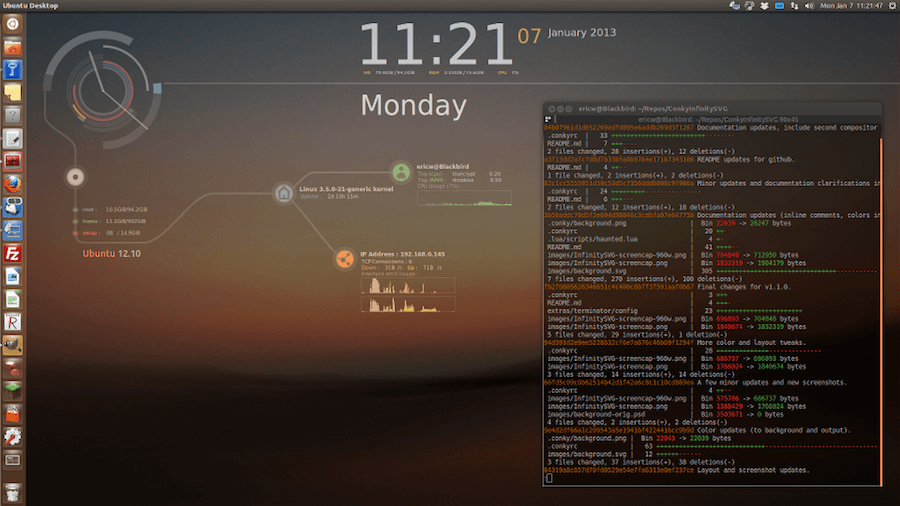
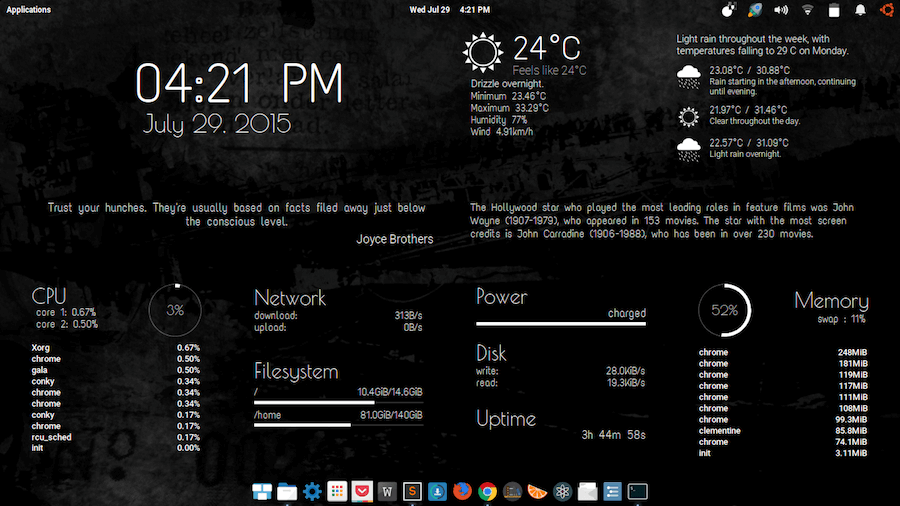
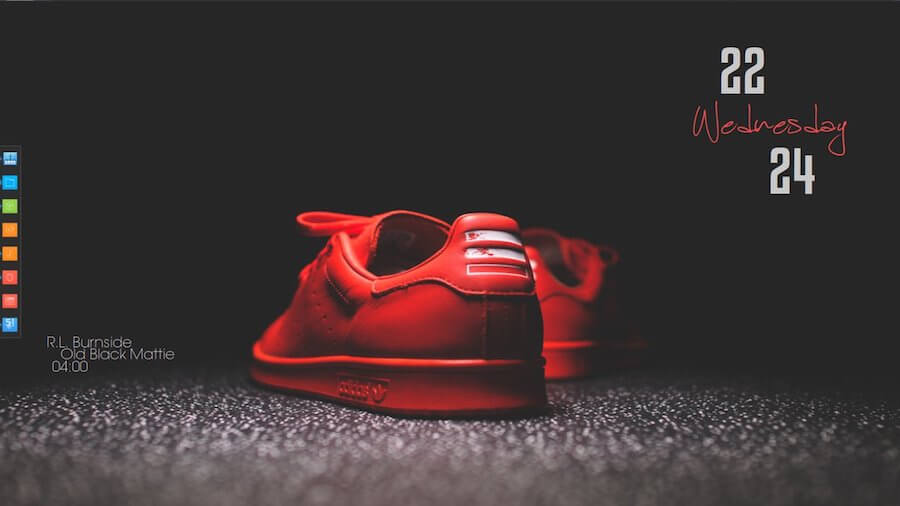
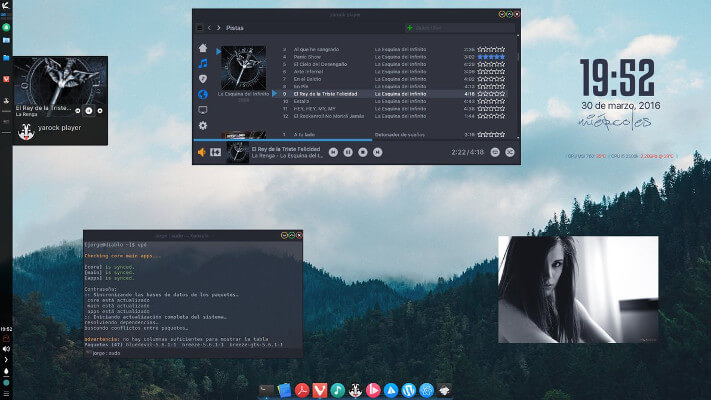
Conky is a light-weight system monitor for X, which displays a variety of information on your desktop. ... That is when a Conky config tool such as Conky Manager comes in handy. ConkyManager is a GUI frontend for managing Conky configuration files.
Features in Conky
Apart from being able to display data as text, graphs and progress bars in varying colors and fonts, Conky has:
- Access to more OS statistics than you may ever need e.g. user name, system uptime, Disk, Memory and CPU usage, network statistics, e.t.c.
- An inbuilt support for IMAP and POP3.
- An inbuilt support for all the popular music players including Audacious,Rhythmbox and MPD.
- The ability to be extended using either its inbuilt support for Lua or custom scripts and programs.
- An inbuilt Imlib2 and Cairo bindings support for drawing with Lua.
- Support for two or more instances of Conky running at once using different config files, e.g.
$ conky -c ~/.config/conky/conky1.conf
$ conky -c ~/.config/conky/conky2.conf

Using and Configuring Conky in Linux
Conky uses a
.conkyrc file located in the /etc/conky/ folder. This file contains Conky‘s display settings which can be manipulated either manually with a text editor or theConky manager. Some settings include font color, screen position, update interval and they are all in the configuration section of your configuration file.
Conky manager makes it easier to add themes, widgets, and fonts, and to manipulate configuration settings since it provides an easy-to-use GUI. Look here to see the various configuration settings you can implement in Conky.
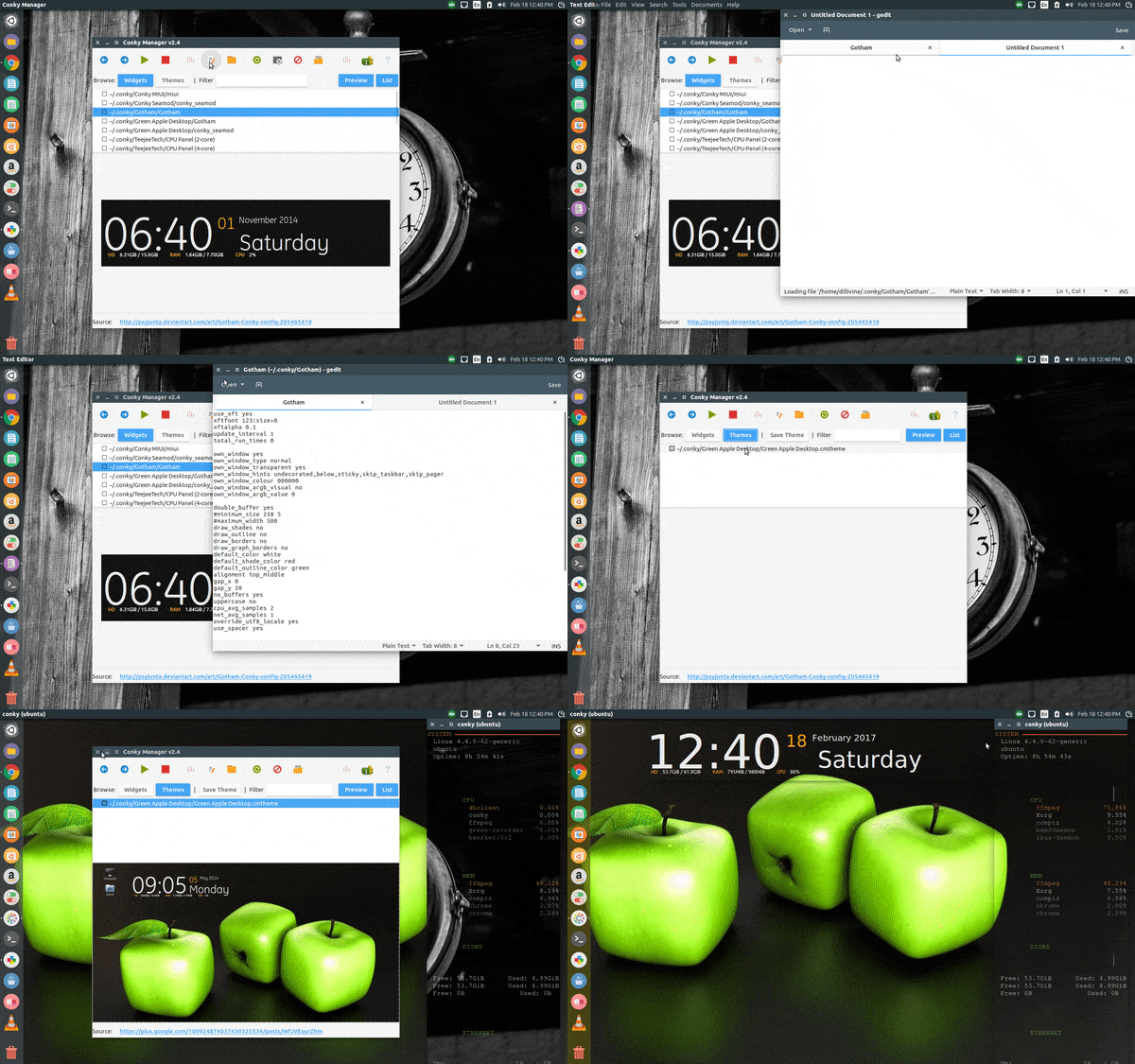
Conky Manager
Installing Themes in Linux Using Conky
Setting up new themes in Conky is a seamless process:
- Download the theme.
- Unzip the file if necessary and move the folder to /home/your_user_name/conky-manager/themes/
- Start the Conky manager and then enable the theme using Conky manager.
Most themes and widgets come containing installation readme files without information about dependent fonts and/or wallpapers so it is important you go through the files to know about any extra tweaks you might want to make.

 Once you select a theme, from within Conky Manager, you can then click the edit button and that theme’s configuration file will open up in your default text editor, so you can configure the file to suit your needs.
Get GUI
If you don’t much care for working from the command line, there is a GUI tool, called Conky Manager, that you can install and use. Here’s how to install this handy app:
- Open up a terminal window
- Add the necessary repository with the command sudo add-apt-repository ppa:teejee2008/ppa
- Update apt with the command sudo apt-get update
- Install Conky Manager by issuing the command sudo apt-get install conky-manager
Run Conky Manager with the command conky-manager. When the app opens, you’ll see a simple-to-use window (Figure 4) that allows you to easily import theme packs, customize themes, and more. When you install the Conky Manager app, it will install several predefined themes that you can select from.
Figure 4: The new background thanks to selecting a theme from Conky Manager.
conky_d.png
If you’ve installed a theme, prior to installing Conky Manager, you’ll need to move the~/.conkyrc file into the newly created ~/.conky folder. When you do this, Conky Manager will recognize the theme and allow you to load it and work with it.
conky_e.png
Figure 5: Our Qlocktwo theme loaded into Conky Manager.
Typing Conky themes in your search engine will return tons of themes you can choose from to customize your desktop screen. You can also see a gallery of various users’ theme implementations on DeviantArt.
You can Share pictures of your configuration settings in the comments section you have any experience with Conky system monitor.


