Showing posts with label Macs. Show all posts

Monday, 26 September 2016

iOS 10 REVIEW

iOS 10 review


Image result for ios 10

 iOS 10, the latest operating system for Apple's iPhone and iPad. On June 13, 2016, Apple unveiled iOS 10, the next-generation operating system for the iPhone, iPad, and iPod touch,  on September 13 it was released to the public. At the introduction, Apple CEO Tim Cook described iOS 10 as the "biggest release ever" for iOS users, and the operating system includes major updates for a wide variety of apps, features, and services, including Messages, Maps, Apple Music, News, Apple Pay, Siri, Photos,  Control Center, and more.
Image result for ios 10  Features:
*Siri
Siri now integrates third-party apps Apple is opening up Siri and making the process for app developers transparent is great which is important, some apps can now be controlled by Siri: calls, messaging, payments, photos, ride-sharing apps, workouts, and CarPlay systems. Square Cash,  WhatsApp, and Yelp, LinkedIn, OpenTable, Uber, are all options inside Siri.
In settings you can find a list of your apps that support Siri.
You still can only use Siri with voice and can’t type at it.
*Maps:
Apple Maps has been overhauled in iOS 10. Apple has put a slider on top of the map canvas, on the bottom, and generally cleaned up the way it displays pins and locations on the map itself.
The CarPlay navigation view is a little more robust now, too. It can connect to restaurant apps and ride-sharing apps and the navigation view is also better and allows you to search along the route.
*iMessage:
iMessage is becoming a platform all its own. There are third-party apps, stickers, crazy confetti effects, and emoji.  You can embiggen your texts so they slam on the screen when you send them. You can turn your phone sideways and scribble out notes — then send them with the "invisible ink" option so your recipient has to manually reveal them. You can search for GIFs . You can draw on photos before you send them.
The basics are easy, and if you want to go bonkers you can hunt the rest down. our chats could become a multimedia nightmare of stickers, drawings, audio clips, GIFs, heart beats, kisses, and laser effects. Or maybe that's a wonderland, not a nightmare. Your call.
There are also more full-featured apps in iMessage.
*Lock screen and notifications:
 Apple Slide to Unlock feature that was one of the defining features of iPhones since they were first announced is out of the way now. Instead, you'll use Touch ID and press the home button to unlock. It's different, and it takes a little getting used to.
The screen wakes up as soon as you lift your phone up, showing your notifications straight away. To unlock, you press the home button.
The bigger change to the lock screen is how it handles notifications: they've been overhauled all over the OS, and the lock screen gets those benefits. They look different now they're discrete bubbles.
*Widgets:
Today View shows up in three places: the left of the home screen, notification pane, and lock screen. It's a place for you to put all your widgets for weather and news and whatever else, replacing Apple's own half-baked attempts with the old Siri predictive screen. Apple’s own apps have a bunch of widgets ready for use and there are third-party widgets already available, too because they were there on iOS 9. But they’re easier to find now.And Control Center also lets you use 3D Touch on the bottom row of icons (which, frustratingly, you cannot change) but not (again, frustratingly) the system toggles on the top. It’s split into two, sometimes three panes. The first is for system controls, the second for audio controls, and the third (if you need it) for smart home controls.
*Music
Image result for ios 10 Music

Apple Music in iOS 10, is the better. The "Connect" tab, a little feed of content from your favorite artists, has been sent off to live with Ping on the island of forgotten Apple social ideas.
The overall navigation and organization of the app has been clarified and cleaned up. Like Spotify, Apple Music is trying to be at least two things at once: a place to navigate your own music library and a place to discover new music via a subscription service.
The new "Now Playing" screen is also simplified, just don't forget to scroll up a bit to get options like lyrics and the shuffle / repeat buttons.
*Other Apps:

Apple News continues to exist, now with breaking news notifications from key partners
Apple Mail. It finally does a decent job threading emails into a single, scrollable pane of messages. you couldn't imagine using a mail client that doesn't offer a "snooze" function anymore, and there are too many good options out there that offer it to consider sticking with Apple Mail.
*CarPlay:
Image result for CarPlay in iOS 10
Just like in iOS 10 for iPhone, iPad and iPod touch devices, Apple CarPlay now has the ability to remove or hide stock apps if the user sees fit. It’s natural to assume that not every stock app that ships pre-installed with CarPlay will be useful to the vehicle owner, just like not every app on the iPhone or iPad is utilized frequently. Seeing this, Apple has given users the ability to remove stock apps in CarPlay as well.
This option can be accessed by heading into Settings > General > CarPlay > [Your Car/Receiver Name] on the connected iPhone.

Before you leave, do me a favor and answer me this question:
What’s your opinion of Bitcoin
~Is it here to stay — permanently — or is it just another passing fad?
Leave your comment below  (Please! Don’t forget to use the social sharing buttons, either)!
Friday, 23 September 2016

ZUBIE PLUS IN-CAR WIFI

ZUBIE GPS PLUS IN-CAR WIFI

Image result for ZUBIE GPS PLUS IN-CAR WIFI
Everyone are looking for modern ways to track their vehicles. The new Zubie device with 
Best all-around mobile application, Strong Wi-Fi connection through Verizon, Business features and plan available aims to meet the needs of both applications with a device to send your vehicle’s information from the ODBII port right to your smartphone or computer. 

The Zubie can send you an automated update on your car's location and keep track of maintenance.
 Zubie was created with partial funding from Best Buy back in 2012. 
The device has been one of the earlier pioneers in the connected car industry and have expanded to the newest Wi-Fi model. The Zubie basic unit without Wi-Fi is technically free but you will pay $100 which includes the first year of service and service going forward will continue at $100/year.
The  Wi-Fi model Service cost will you a bit more at $10 per month or $120 per year.
In either case there are no contracts, a 30 day money back guarantee, and one year warranty. 

Because of the partnership with Verizon, the Zubie Wi-Fi can act as a hotspot but you will  need to connect it to the Verizon network with an existing plan or start a new Verizon plan.  The partnership made Zubie to have a more consistent Wi-Fi connection and higher speeds than any order the competing devices using T-Mobile or Sprint.

Driving connected, Once the zubie is received you can  sync your Zubie with an account on zubie site,

 or within the Zubie mobile application for iOS and Android

Image result for ZUBIE GPS PLUS IN-CAR WIFIImage result for ZUBIE GPS PLUS IN-CAR WIFI

The Zubie application will give the location of vehicles within the group  making important information readily available. 

Once  a vehicle card on the main screen is selected  the current fuel level, self test results, battery status, and any maintenance alerts. Scrolling down further, will sow a map and information such as distance, time length, driving habits, and fuel cost of your latest trip.


Image result for ZUBIE GPS PLUS IN-CAR WIFI


Before you leave, do me a favor and answer me this question:
What’s your opinion of Bitcoin
~Is it here to stay — permanently — or is it just another passing fad?
Leave your comment below  (Please! Don’t forget to use the social sharing buttons, either)!

WILL MY MAC RUN MAC SIERRA

WILL MY MACBOOK  RUN MAC SIERRA

Image result for macOS Sierra
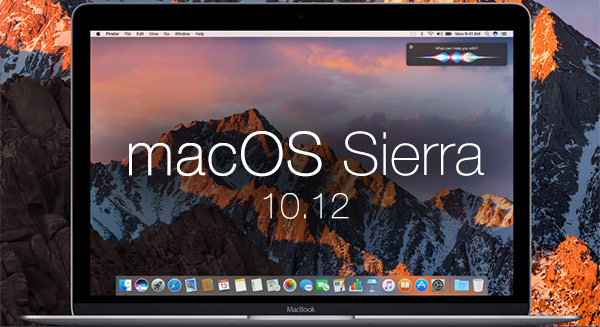
On September 20 macOS Sierra the latest version of the Mac operating system was made available for free in the App Store.
But the the big question: Is your Mac compatible with Sierra? lets see the compatibility list, according to Apple.
Image result for macOS Sierra

OS requirements
You can upgrade from OS X 10.7 Lion or later.
Apple Pay and Universal Clipboard Requirements
To use your iOS device with Universal Clipboard, that device needs to run iOS 10.
For Apple Pay, you also need:
*iOS device running iOS 10 
or
*Apple Watch running watchOS 3
To use the Apple Pay and Universal Clipboard you'll need the following:
iMac (Late 2012 and later)
MacBook Air (Mid 2012 and later)
MacBook Pro (Mid 2012 and later)
Mac mini (Late 2012 and later)
Mac Pro (Late 2013)
MacBook (Early 2015 and later)
Auto Unlock Requirements
You need these to use Sierra’s Auto Unlock feature.
Any Mac model from 2013 or later
Signed in to iCloud with the same Apple ID
Two-factor authentication must be turned on
iPhone running iOS 10
Apple Watch running watchOS 3
MacOS Sierra compatible
iMac (Late 2009 and later)Mac mini (2010 and later)Mac Pro (2010 and later)MacBook (Late 2009 and later)MacBook Air (2010 and later)MacBook Pro (2010 and later)

Before you leave, do me a favor and answer me this question:
What’s your opinion of Bitcoin
~Is it here to stay — permanently — or is it just another passing fad?
Leave your comment below  (Please! Don’t forget to use the social sharing buttons, either)!
How To Flashing an SD card on a Mac

Flashing an SD card on a Mac

Image result for RasPiWrite mac
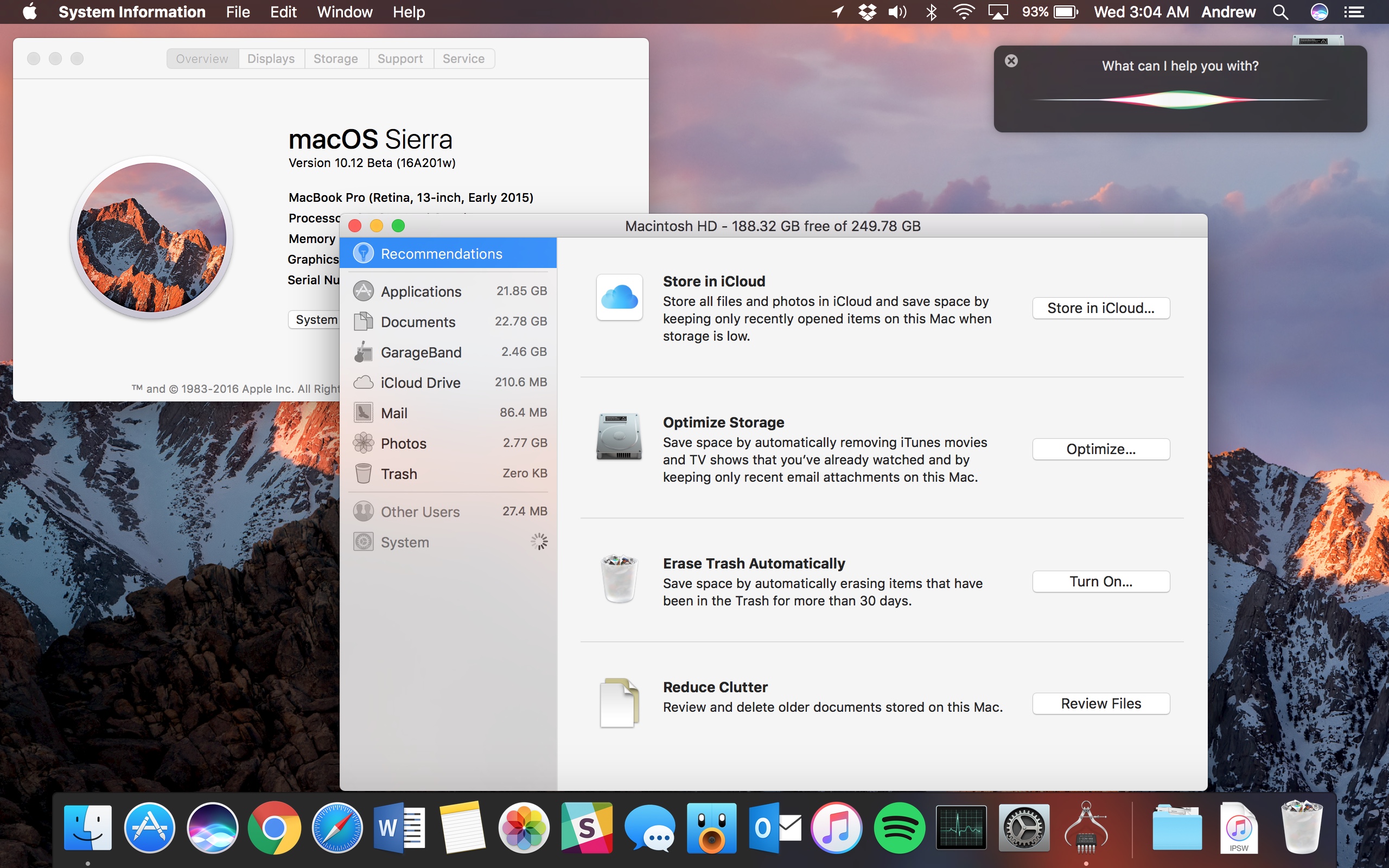
On Mac, you can use a script called RasPiWrite to automate much of
the process of flashing the SD card including
unzipping it.
Because this operation involves erasing a disk using beta soft-
ware, we strongly advise
you to make sure your computer is backed up before you begin, just in case
something should goes wrong.
RasPiWrite can download one of the officially recommended distributions
before flashing it to the SD card. Our instructions are slightly different than
the instructions provided with RasPiWrite because we prefer to download
the distribution separately, so that we can choose from any of the distribu-
tions available, not just those that are officially endorsed, and so we can
more easily see how the download is progressing.
Here’s how you can use the script to flash your SD card:
Downloading the Operating System
1. In your Documents folder, create a folder called SD Card Prep and a
subfolder called RasPiWrite inside that.
2. Visit click here to  download the Zip file for RasPiWrite.
3. Double-click the downloaded file and open the resulting folder.
4. Drag the three files it contains into the RasPiWrite folder you created.
5. Drag the Zip file of your Linux distribution into the RasPiWrite folder.
6. Launch the terminal. If you can’t find it, press Cmd+Space bar and
type terminal into the Spotlight search bar. Press Enter to launch the
terminal.
7. Go to the SD Card Prep folder in a Finder window and, in the terminal
window, type cd, followed by a space. Then, without pressing another
key, drag the RasPiWrite folder into the terminal window.
This places the path of that folder into the command line.

8. Press Enter. Then type ls (in lowercase) and press Enter to see a list
of files in the folder.
You will use this list later to copy the name of your distribution Zip file
so you can avoid making a mistake while typing it.
You should now be in the RasPiWrite folder in the terminal.


9. Remove any memory cards, USB keys, or other removable storage
devices you might have plugged in and then run RasPiWrite by typing
sudo python raspiwrite.py (in lowercase).
10. Enter your system password.
You will see a few paragraphs of information about the script, topped off
with a lovely raspberry created using text characters.

11. Insert your SD card either in the Mac’s SD slot (if it has one) or
through an SD card reader, and then press the Enter key.
What happens next depends on your system.
For example, the has a partition that it runs Boot Camp from and RasPiWrite
thinks this is his SD card. This is why you’ve got to be vigilant: RasPiWrite
can get confused about which device is your SD card and could mistakenly
wipe the wrong one if you drop your guard. (In practice, it doesn’t work if
it can’t unmount the drive, so it wouldn’t actually wipe the Boot Camp
partition, but other disks might be vulnerable to accidental loss.) The

 Raspberry Pi
Image result for RasPiWrite install mac
The following drives were found, please verify the name of
the SD card in finder with the name under the Mounted On
column (after /volumes/):
Filesystem
Size
Used
Avail
Mounted
Capacity on
Volumes/WINDOWS
/dev/disk1s1
56Mi
34Mi
22Mi
61%
/Volumes/
Untitled
---------------------------------------------------------
I believe this is your SD card: /WINDOWS is that correct?
(Y/n)

12. This is not an SD card, so we respond with N for No and press Enter.
If RasPiWrite correctly identifies your SD card, enter Y and skip to Step 15.
13. RasPiWrite then responds with Please Enter the Location You Believe
Holds the SD Card. Enter dev/disk1s1 or simply copy and paste this
from the window.
14. You’ll see a message that says, I Believe This Is Your SD Card: /dev/
disk1s1. Is That Correct? (Y/n). Reply by pressing Y and then Enter.
It will then ask if you want it to download a distribution.

15. Because we have already done this, type N and press Enter.
The script asks you to locate the disk image. Scroll the terminal window
back up to where you used the ls command and copy the file name of
the distribution, and then scroll down to the bottom of the window and
paste in the filename.
The image file is extracted from the Zip file, which might take a short
while. After that, RasPiWrite summarizes the setup you have chosen and
reminds you that you use RasPiWrite at your own risk. Double-check
the details here, especially that the SD card has been correctly chosen.
Whatever you’ve selected here is where the Linux distribution will be
installed.

16. To proceed, type accept and press Enter.
At this point, you might think that the program has hung up. You should
see a series of dots being slowly printed on the screen. This can take
a long time: Paul, our technical editor, found his computer finished in
under half an hour but Mike’s computer took over an hour. You can use
the computer for other things while this is going on, but if the computer
crashes, you have to start over from the beginning of the flashing pro-
cess. When it’s finished, you get a message telling you that you can dis-
mount your SD card.Chapter 2: Downloading the Operating System
There’s one other thing you should look out for when using this script. After
typing accept, you might immediately get an error message like this:
Running dd bs=1m if=2012-08-16-wheezy-raspbian/2012-08-16-
wheezy-raspbian.img of=/dev/disk1...
Waitingdd: 2012-08-16-wheezy-raspbian/2012-08-16-wheezy-
raspbian.img: No such file or directory
done!
.Transfer Complete! Please remove the SD card
The message telling you that the transfer is complete is not true, and the clue
is that there was no delay before you saw this message. The message “No Such
File or Directory” is saying that it couldn’t find your Linux distribution image.
This can happen if the distribution contains just an image file instead of the
image file inside a folder of the same name. In this case, go back to the Finder
and create a folder inside the RasPiWrite folder and give it the same name as
your distribution Zip file, but without the .zip on the end. Then go into the
RasPiWrite folder and drag the .img file (which the RasPiWrite script has now
unzipped for you) into the folder you just created. You can then repeat the
previous steps successfully.

Before you leave, do me a favor and answer me this question:
What’s your opinion of Bitcoin
~Is it here to stay — permanently — or is it just another passing fad?
Leave your comment below  (Please! Don’t forget to use the social sharing buttons, either)!